Fred NXT Office 06 2017 (22 May 2017)
Release Notes
What is new in Fred NXT Office?
Planned orders - Manual Replenishment Filter
When creating ad hoc orders by vendor(s) within the Planned Orders screen, a new Manual Replenishment filter in the Advanced Product Search can be used to manually generate a suggested order.
Once the order is generated, lines can be added, removed or updated, before sending the order to the relevant vendor(s).
The Manual Replenishment filter is designed to be used independently from the other filter options in the Advanced Product Search.
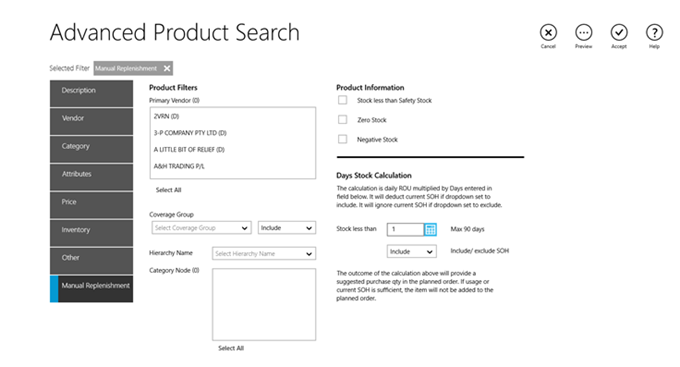
For details about this functionality, refer to Manual Replenishment in Planned Orders by Vendor.
Planned Orders - Additional dialog prompt
In Planned Orders, a dialog prompt is displayed if the purchase order is not created 60 seconds after tapping Create.
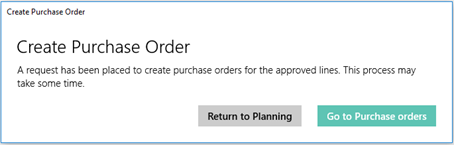
- Return to Planning to return to the Planning tile screen.
— or —
- Go to Purchase Orders to complete the process in .
Print Planned orders
A Print function has been added to the Planned orders by vendors grid.

The Planned Orders grid can be printed immediately or saved locally as .pdf
Stock Counting - On Hand
When opening new , the On hand value displayed on each product tile represents the available Qty of a product.
If starting a counting journal during trading hours, On Hand takes into account any Qty that may have been dispensed, sold at the POS, or received on this day prior to creating the counting journal.
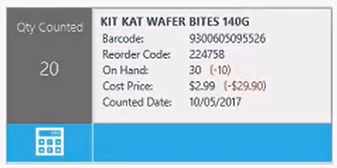
Once products are counted and the batch is committed, the On Hand value is updated. Variance is displayed in red and records the difference between the On Hand value at the start of counting and the counted Qty.
The calculation of the On Hand value is aligned throughout Fred NXT and the same On Hand value displays when searching for a product in Fred NXT Mobility, Fred Dispense Plus and Fred NXT POS.
To ensure the accuracy of the On Hand (and Variance) value, there should be no stock movement while counting is under way. There should be no selling of these specific products at the POS, and orders containing these products should not be received, until the counting journal is posted.
Invoices - Modified Create return dialog prompt
In Invoices, the dialog prompt displayed when committing an imbalanced invoice has been modified, to ensure Create return is selected manually before tapping OK.
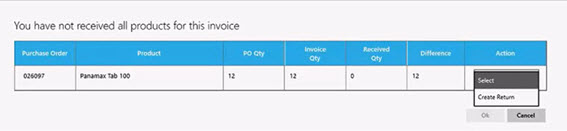
Previously Create return was set by default. This has caused a number of returns to be created involuntarily.
Reports - Daily Totals
A new Daily Totals reports has been added to the Reports section of Fred NXT Office.
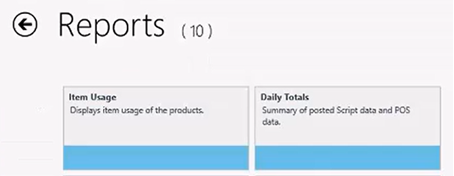
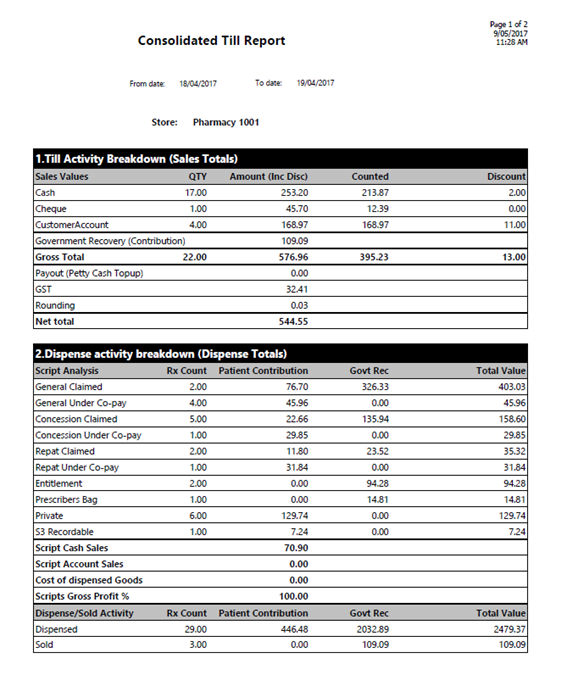
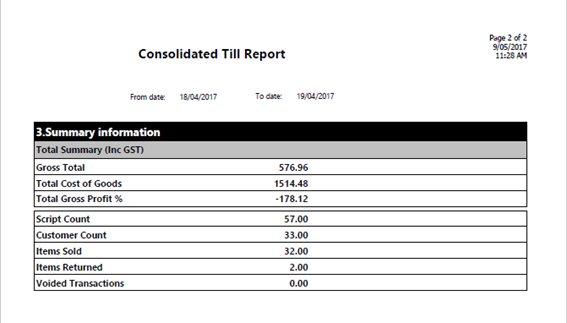
This reports consolidates three main areas of reporting:
- Till Activity Breakdown
- Dispense Activity Breakdown
- Summary Information
The Daily Totals report runs on multiple pages. It can be exported to .csv, to facilitate its import into other accounting systems.
See Store reports.
Price settings - Margin and Markup calculations
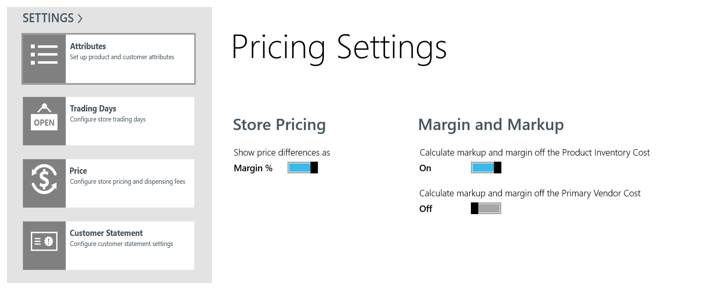
A new toggle has been added in to allow stores to optionally set the Markup and Margin values (recorded in each Product card) to be derived from either the Product Inventory Cost (MAVG) or the Primary Vendor Cost (Last Purchase Cost).
This setting is effective immediately and does not affect the Retail price.
The re-calculated Margin and Markup is displayed when opening a product card. If no cost exists, both Markup and Margin display as 0.00%
Reports - New Manufacturer filter in Item Usage report
A new Manufacturer filter has been added to the Item Usage report.
When this filter is set, the report displays a list of products sold for the selected manufacturer during a specified date range.
The report output is grouped either by Store or by Item.

The Item Usage by Manufacturer report has been removed from the Store reports.
See Store reports.
What is fixed in Fred NXT Office?
Invoices - Commit invoice
In Invoices, committing an invoice, then tapping  to return to the Invoices screen no longer causes Fred NXT Office to crash.
Reports - Item Usage
In the Item Usage report, the selection of the store is now restricted to the permissions granted to the logged in user.
This change ensures that reporting data is only available to users affiliated with this store.
Reports - Customer Balance List
In , the Customer Group filter now works as expected and the report only includes account assigned to the selected Customer Group.
Reports - Customer balance list
The Customer balance list report is now sorted alphabetically by Customer Name. Previously, the report was sorted by Customer Account Number.
Reports - Customer Ageing Report sorted alphabetically
The default sorting order for the Customer Ageing reports is now Alphabetical by Patient Name or Company name.
Reports - Customer Statements for Nursing Homes
The Statement Parameters screen has been re-designed to ensure the Nursing Home filter is always visible when the Ageing Period is enabled.
Previously, sites using a smaller screen resolution had reported that the filter was truncated.
Planned orders - Performance improvement
Changes have been made to Planned Orders in order to reduce the delay when displaying the Planned Orders screen.
Planned Orders - Scrolling up and down long grids
When scrolling down a long order grid to update a line entry, the focus remains on this line item until the user scrolls up again.
Sites have reported issues with the focus being automatically changed to the top of the grid after editing a line. This is now resolved.
Planned Orders - Grey highlight for selected line items
In the Planned Orders grid, manually selected lines are now displayed with a grey colour. This change is intended to assist with the identification of selected lines prior to creating an order.
Purchase Orders - Print out displays correct store details
The store details (Name, Address and Contacts) displayed on a Purchase Order printout are now correct. Previously, the Head Office details were printed, instead of the details of the store.
Customer statement - Address print with line breaks
The layout of the Customer Statement has been adjusted to ensure the customer address is displayed on multiple lines.
Create customer - Transfer Customer menu displays all stores in the company
In , when setting up a store as a transfer customer, the Transfer Customer dropdown now displays all the stores in the Company (except the store of the logged in user).
Previously, this dropdown menu only displayed a limited list of other stores, based on the logged-in user's address book.
 Search Tips
 Fred Learning Pathways