Manage your user profile
Fred Identity
Access the Fred Self-Service Portal, to update some of your own identification and contact details.
View and edit your details
- Log into https://selfservice.frednxt.com.au with your Fred NXT username and password.
This is the same credential used for Fred NXT Office.
My Profile screen is displayed by default.
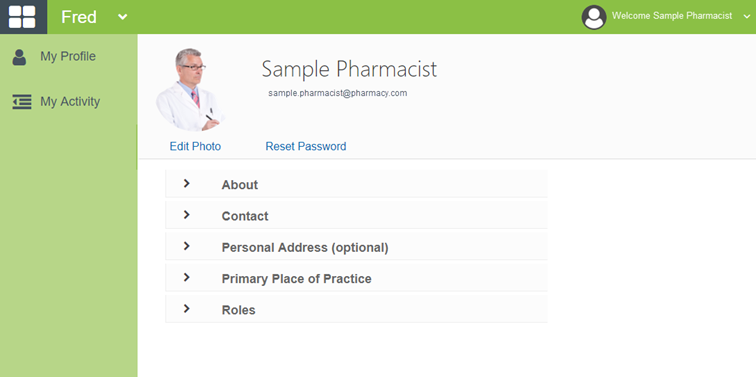
- Expand any of the headers and update your details:
- Title
- First Name
- Last Name
- Mobile
- Phone
- Alternative Email
- Personal Address
- Click Save to save your changes, or Cancel to discard your changes.
When editing your profile information, the Save button is displayed next to Reset Password.
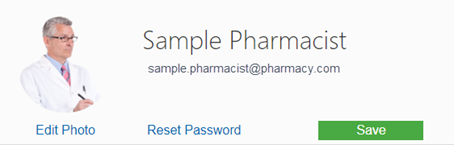
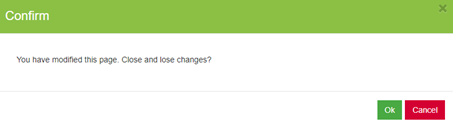
If you navigate away from this screen without saving your changes, you are prompted to save your changes.
Add a photo to your account
Your account photo is currently displayed in the Self-Service Portal only. It may be displayed in other Fred NXT products in the future.
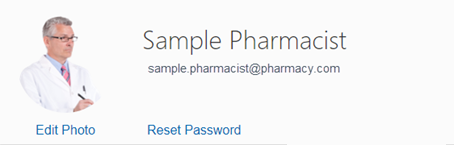
- On the Profile screen, click Edit Photo.

The Profile Picture screen is displayed.
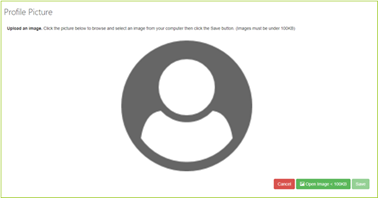
- Click Open Image, then browse to the image you want to upload, and click Open.
The image must be smaller than 100 kilobytes.
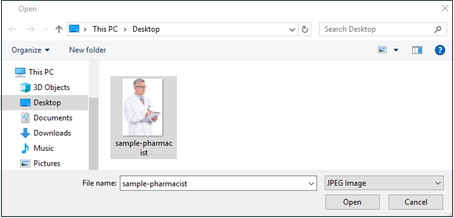
Your image is uploaded.
- To keep the image, click Save (alternatively, to discard the image, select Cancel).

The image is now displayed next to your name on the Profile screen.
Change your password
- From My Profile tab, click Reset Password.
The Confirm Password Reset message is displayed.
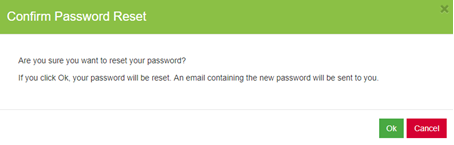
- Click OK to confirm password reset.
You will receive an email with a temporary password. Follow the instruction in the email to log in with the temporary password and then change to a new password.
You cannot reset your password directly from the Self Service portal.
For more information, refer to Reset your Fred NXT Password
 Search Tips
 Fred Learning Pathways