Account and statements
UAT
| Task | Complete |
|---|---|
| Validate Customer Groups | £ |
| Validate Payment Terms and Ageing groups | £ |
Validate Customer Groups Validate Customers (If Applicable) | £ |
| Validate the Customer Balances (If Applicable) | £ |
View Generated Statements and Validate Details | £ |
If you find inaccurate data or have any questions, contact your Fred Project Manager.
- Customer Payments and Refunds are performed in Store from Fred NXT POS.
- Patient creation and linking of patients to customer accounts are performed in Store from Fred NXT Dispense
Validate Customer Groups
- Go to Customers > Customer groups.
- Review all customer groups including Terms of payment.
Validate the Customer Balances (if applicable)
- Go to Reporting > Customer Balance List with Credit Limits
View Generated Statements and Validate Details
- On the Dashboard, go to the Customers group and click Statements.
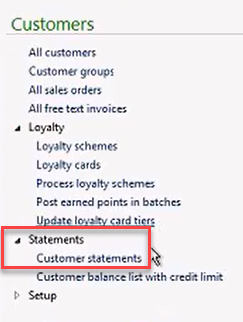
- In the Customer statements window, select from the following parameters:
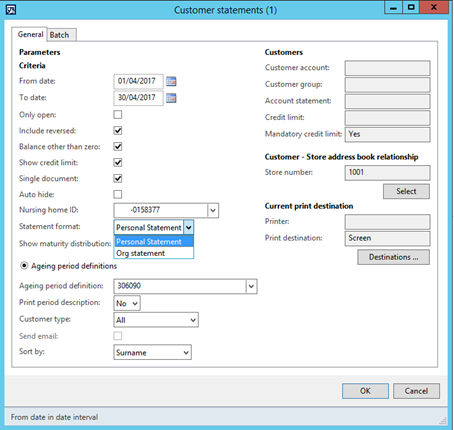
Field Description From Date Select the starting date of the transactions to include on the statement. By default, the report displays the opening balance in each currency for which transactions exist, as of the date in the From date field.
To Date Select the ending date of the transactions to include on the statement. By default, the report displays the closing balance in each currency for which transactions exist, as of the date in the To date field. Only open Select this check box to include only transactions that are not settled. This option helps reduce the time that is required to generate statements, because the reports include only open transactions, instead of all transactions, for each customer. Include reversed Include transactions that have been reversed or corrected. Balance other than zero Only generate statements for customers who have a balance that is not zero.
This option helps reduce the time that is required to generate statements, because statements are not generated for customers who have a balance of 0.00. Show credit limit – Print credit limit on statement.
Show credit limit When selected, the credit limit ($x.xx) prints on the statement. Single document By default, Fred NXT Head Office generates one statement per customer, and opens one browser window per statement.
- When Single document is set, the batch of customer statements opens in the same window (instead of one window per statement).
- When Single document is set and a Print destination is selected, a single file is saved to the selected folder.
Auto Hide When Auto hide is set, any Cancel or Edit action performed on auto charged scripts within the open statement period is automatically hidden:
- Cancelled scripts - Both the original and the credit are hidden. No visible line on the statement.
- Edited scripts – Both original and the reversal are hidden. Only the updated transaction is visible line on the statement.
- Transactions that have been reversed or corrected at the POS on the same day.
Nursing home ID Restrict to one Nursing home. Statement format The Statement Format option is available only if a Nursing Home is selected.
Organisation statements
- Organisation statement are Invoiced to the Nursing home and not the patient.
- Patient transactions are printed a single list, without page break between the patients
- A Grand total, printed at the bottom of the report, displays the amount owed to the nursing home.
- Total GST prints in the footer section.
- A GST Subtotal is also included for each patient listed on the statement.
Personal statements
- The Personal Statement template is the default option.
- Personal statements are invoiced to each individual customers, each separated by a page break.
- BPAY reference details for each individual customer are printed on the statement.
- This statement does not include a Grand Total.
Show maturity distribution When set, the maturity distribution is printed at the bottom of the statement.
You can select this check box only if you have entered dates in the From date and To date fields. Amounts are included in the maturity distributions based on the due date for each transaction.
Ageing period Definitions Select this option to show the maturity distribution according to ageing period definitions that have been specified for your legal entity. Set to 306090 (by default).
Ageing definition calculations use a hidden field within AX that is not visible.
Customer account Enter an account number or a range of account numbers. Customer group
Select the specific customer group (for example, Work Cover) to generate statements for.
It is recommended to select Customer Group as it may take considerable time to generate statements for all Customer Groups at once.
To check Customer Store Address Book > Criteria.
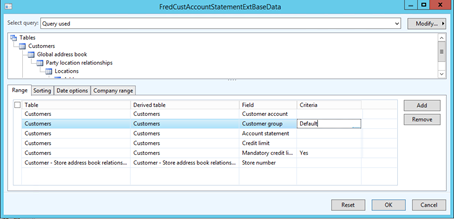
Store number Select the specific store(s) to generate statements for, or leave blank for all stores.
It is recommended to select specific stores as it may take considerable time to generate statements for all stores at once.
Credit Limit Enter the required value $x.xx Mandatory Credit Limit By default, set to Yes, to ensure the statement batch includes only Debtors (customers with a credit limit). Store number Select the specific store(s) to generate statements for, or leave blank for all stores.
It is recommended to select specific stores as it may take considerable time to generate statements for all stores at once.
Print destination Print to screen or set a file location.
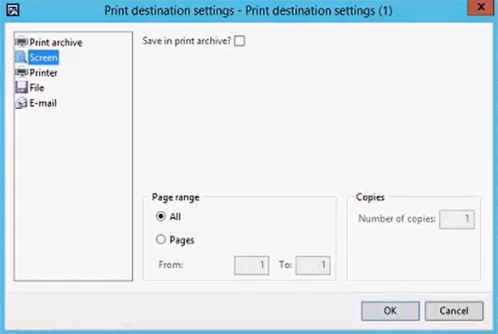
Sending statements by Email will be addressed in a forthcoming release.
- Tap OK to generate the batch.
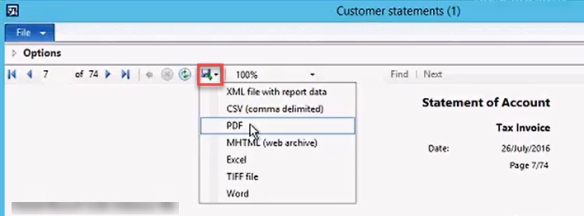
When statements are generated to Screen, they can be saved to file location as PDF files. The saved document can be retrieved and re-issued to the customer, if required.
 Search Tips
 Fred Learning Pathways