Configure Packing and Profiling Settings
Fred Pak
This topic includes information about configuring the settings for Medication Profiles as well as for the various packing formats.
-
From the Setup menu, select Packing Options.
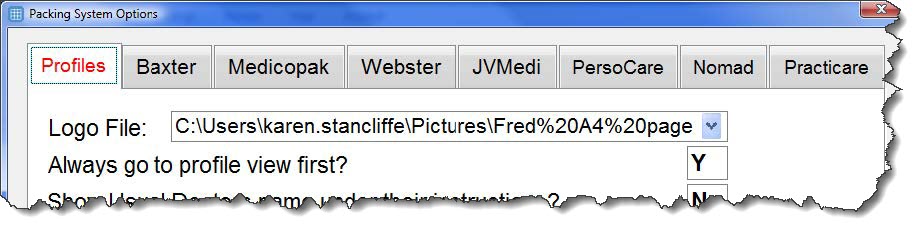
The Packing System Options popup displays.
-
Refer to the information below for the relevant tab on the Packing System Options popup.
 Profiles
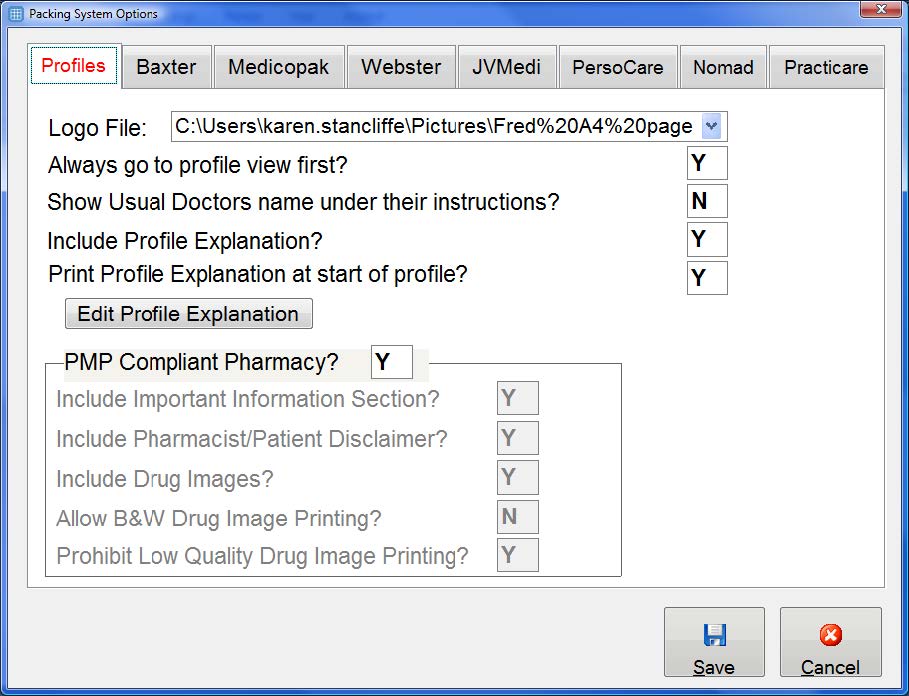
Logo File - Browse and select your Pharmacy Logo image file to be printed on the profiles.
Always go to profile view first? - For patients who do NOT belong in a nursing home, Fred Pak will go to the Profiling Screen. For patients who reside in a nursing home, Fred Pak can be configured to open either the Profile View or the Packing View, depending on the following setting:
-
Y - When entering Fred Pak the profile view will display first. Press F9 to access the packing view.
-
N - When entering Fred Pak the packing view will display first. Press F9 to access the profiling view.
Show Usual Doctor's name under their instructions?
-
Y - The doctor's name will be included next to each individual drug entry in the Patient Medication Profile.
-
N - The doctors name will only print once at the top of the Patient Medication Profile.
Include Profile Explanation?
-
Y - To include the Profile Explanation in the Patient Medication Profile.
-
N - To exclude the Profile Explanation from the Patient Medication Profile.
Print Profile Explanation at start of profile?
-
Y - Profile Explanation will display at the start of the profile
-
N - Profile Explanation will display at the end of the profile
Edit Profile Explanation
Fred Pak provides you with a standard Patient Medication Profile Explanation. This explanation can be edited or changed to your preference.
After changes have been made, you can reset the explanation to the standard Patient Medication Profile Explanation by clicking the Reset to Default button.
PMP Compliant Pharmacy?
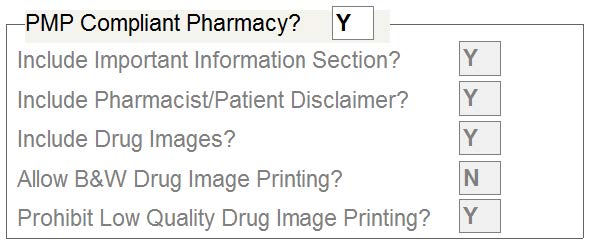
To be compliant with the Patient Medication Profile guidelines as set out by Pharmacy Guild, the following options need to be configured as shown below.
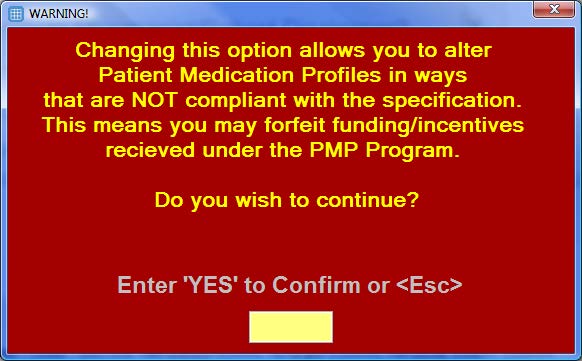
If you change the PMP Compliant Pharmacy? setting to N the following message will display. You need to type YES to confirm you have read this message.
For the following fields, type Y for Yes or N for No.
Include important information section? Type Y or N to include the important information section in the Patient Medication Profile.
Include Pharmacist/Patient Disclaimer? Type Y or N to include the Pharmacist/Patient Disclaimer.
Include Drug Images? Type Y or N to include Drug Images on the Patient Medication Profile.
Allow B&W Drug Image Printing? Type Y or N to allow black and white drug image printing.
Prohibit Low Quality Drug Image Printing? Type Y or N to prohibit low quality drug image printing.
Baxter
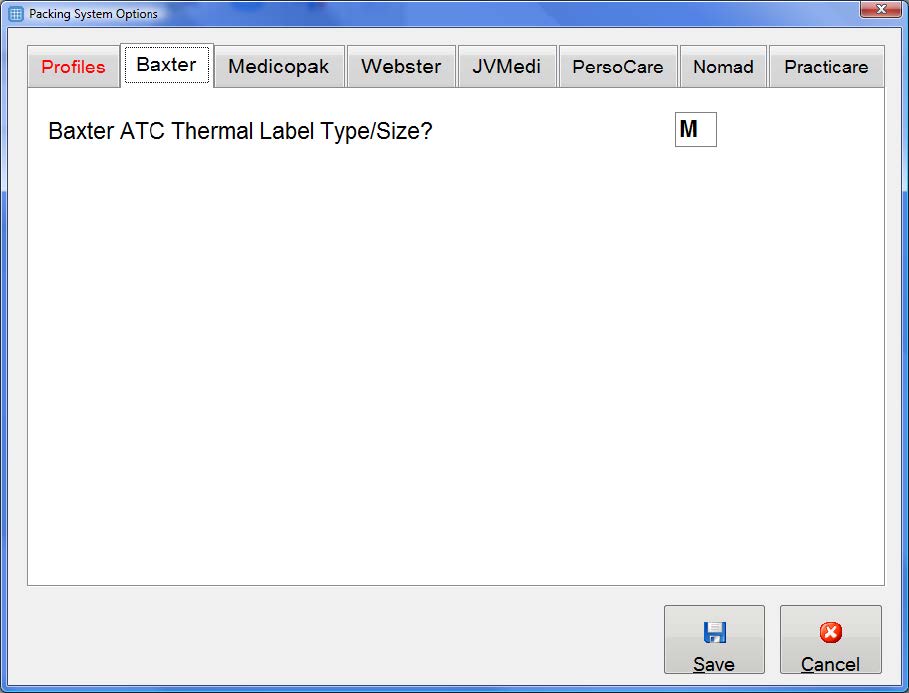
Label Type/Size: Medium = 95mm, Large = 110mm, Upside Down = 110mm
Medicopak
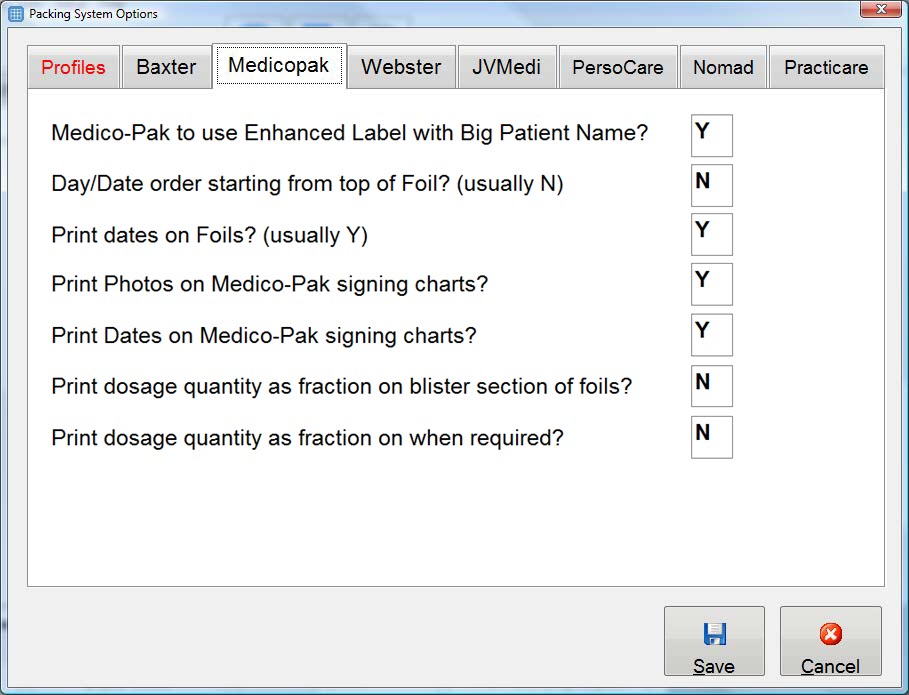
The Medicopak format has the following options:
-
Labels can be configured to print with a larger than normal Patient Name.
-
The Foils can also print in normal or reverse date order.
-
Dates can be printed on the foil or omitted as required.
-
Photos and Dates can be printed on signing charts as required.
-
Dosage quantity can be printed as a fraction on the blister section of foils (for regular or "when required" items).
In previous versions of Fred Pak, Medico Pak “when required” foils always used the default medication name. Now, if a medication has a preferred packed name set, it will be used on “when required” foils, in both the pack header and the bubble.
If a preferred generic header or preferred brand header exist, they will override the preferred packed name.
Webster
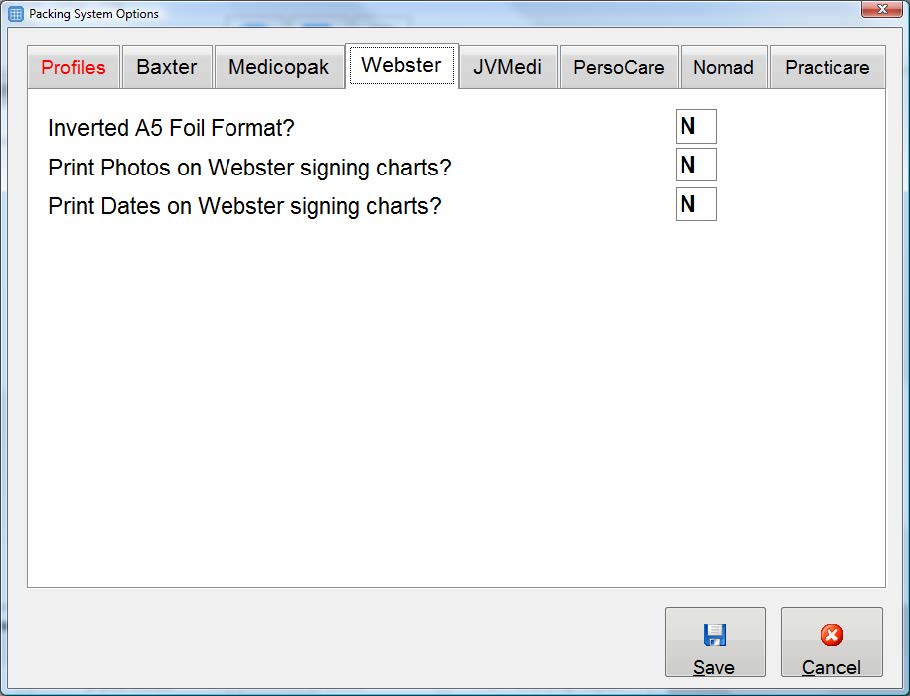
Inverts the printing format of the Webster Laser header card. Type Y for Yes or N for No. Photos and Dates can be printed on Webster signing charts as required.
JVMedi
Label Type/Size: Medium = 95mm, Large = 110mm, Upside Down = 110mm
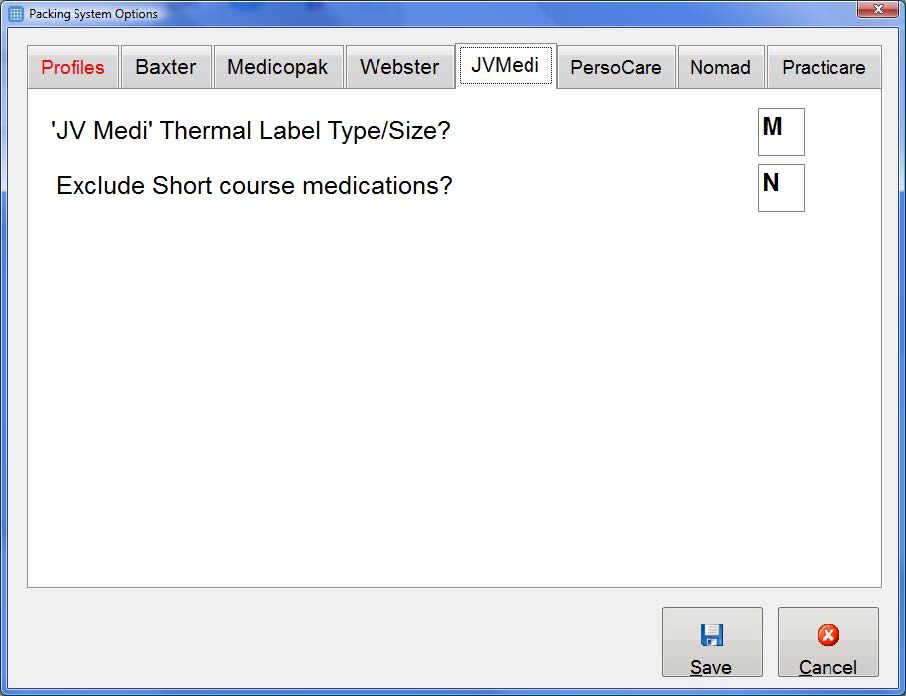
JVM users also have the option to exclude short course medications from packing runs, so that they are not packed with the normal sachets.
In the Exclude Short Course Medications? field, enter:
-
Y to exclude short course medications from packing runs.
-
N to include short course medications in packing runs.
You can still use the Pick function to print short-term medications separately.
Persocare
Persocare is no longer available.
Nomad
Nomad is no longer available.
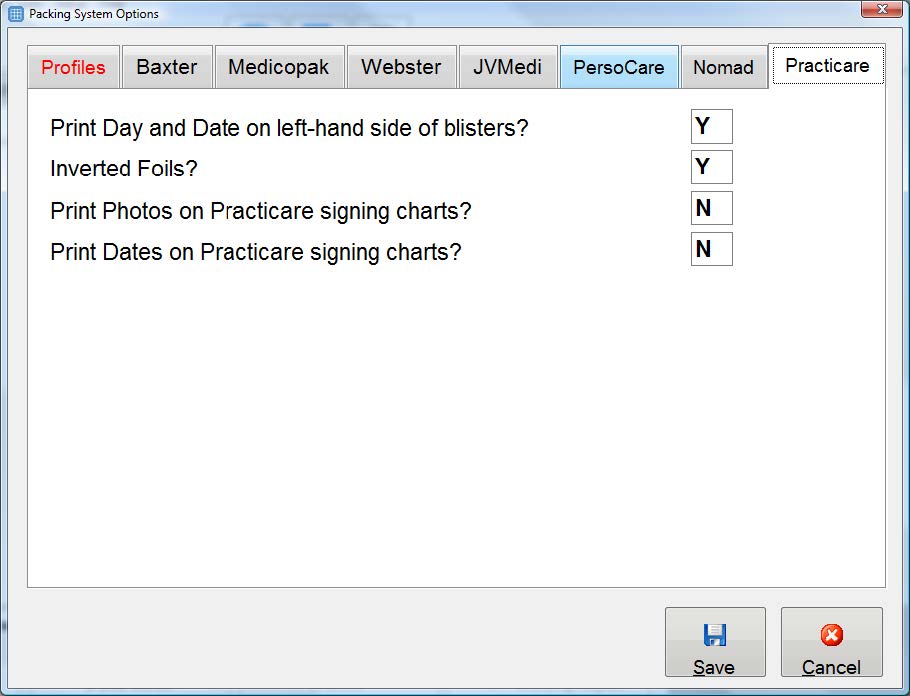
Practicare
Print Day and Date on left-hand side of blisters? Type Y to print the Day Date on the left-hand side of the blisters, or N to not print the Day or Date on the blisters.
Inverted Foils? Type Y to invert the Practicare foil. The purpose of this is to reduce the risk of paper jams by improving how the foils feed through the printer.
Photos and Dates can be printed on Practicare signing charts as required.
 Fred Learning Pathways