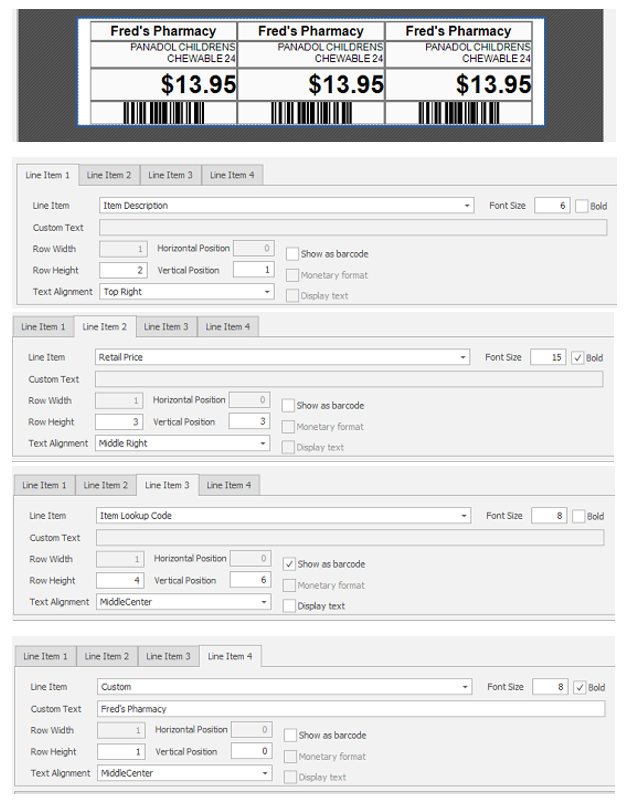
Label templates
The label template wizard allows you to create, modify, and manage product labels. You can select a label format, customise the label layout and information displayed, preview the design, set a default print quantity, and assign a default printer. Templates can be configured for standard or promotional use, with options including product descriptions, barcodes, pricing, and item details.
 Create a label template
Use the label template wizard to set up a new label template for standard or promotional use.
-
From the Tools menu, select Item, then select Labels.
-
Click Add, then click Next.
-
Select a label format, then click Next.
For information about label format options, see Label template settings.
- Enter a name for the label, then click Next.
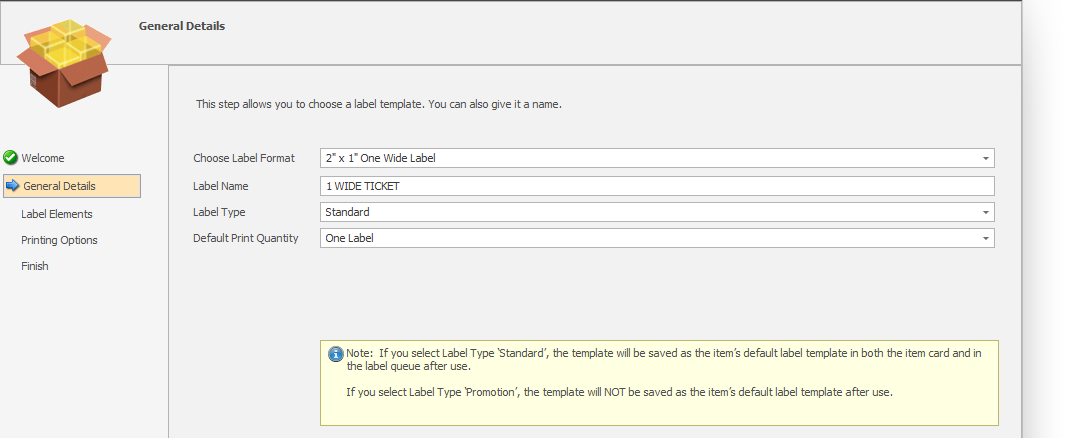
-
Design the label by adding elements. A preview is displayed on the right.
For information about available label elements, see Label elements.
- Click Next.
- Select the printer.
- Click Next, then click Finish.
Edit a label template
Use the label template wizard to update an existing label template.
- From the Tools menu, select Item, then select Labels.
- Highlight the label template, click Edit, then click Next.
- Make any required changes to the General Details, Label Elements, and Printing Options sections.
- Click Next, then click Finish.
Delete a Label Template
- From the Tools menu, select Item, then select Labels.
- Highlight the label template, click Delete, then click Next.
- Click OK.
Label template settings
The following settings are available in the General Details section of the label template wizard.
Label format
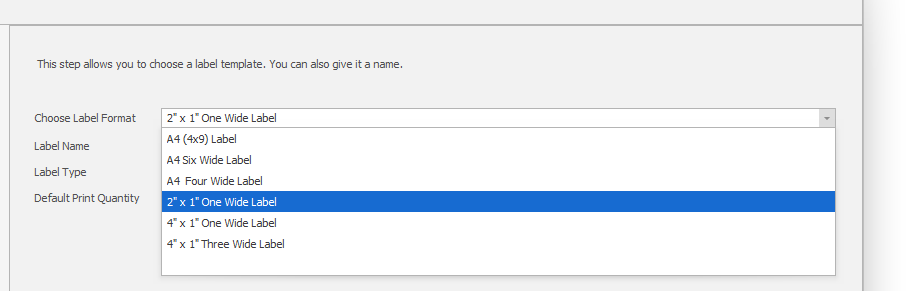
Select the physical label format that matches the labels you are printing on.
| Label format | Description |
|---|---|
| A4 (4x9) label | Perforated A4 cardboard, 4 labels across, 9 labels down. Can also print to standard blank A4 paper. |
| A4 six wide label | Perforated A4 cardboard, 6 labels across. Can also print to standard blank A4 paper. |
| A4 four wide label | Perforated A4 cardboard, 4 labels across. Can also print to standard blank A4 paper. |
| 2" x 1" one wide label | One perforated thermal price ticket. |
| 4" x 1" one wide label | Thermal one-across label. |
| 4" x 1" three wide label | Thermal three-across labels. |
Label name
Enter a name for the label that describes its intended use, for example: 1 wide label ticket.
Label type
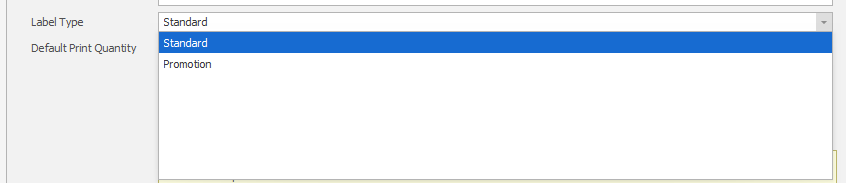
Select Standard or Promotion. Select Promotion if the template is intended for promotional pricing only.
Default print quantity
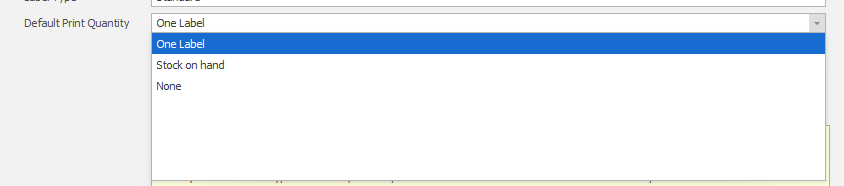
Set the default number of labels to print. The options are:
- One Label: Prints one label per print job (default).
- Stock on hand: Prints one label for each unit in stock, so a label can be applied to each individual product.
- None: Does not print a label unless a quantity is selected at print time.
Label elements
Design the label using the wizard by adding elements and customisations. Each element occupies a row on the label and can be configured independently.
Adding a new element
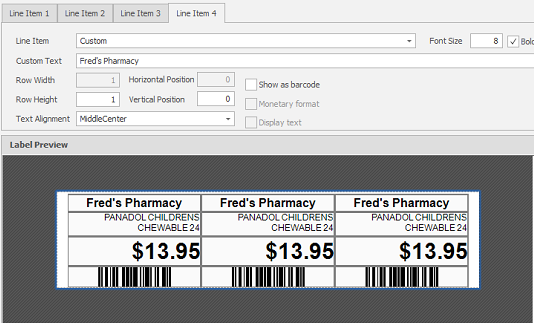
- Click New Line to add a new element.
- Select a Line Item from the drop-down. See Line items below for the full list of options.
- Set the Font Size and select Bold if required.
- Set the Row Height, Vertical Position, and Text Alignment.
Click the thumbnail below to enlarge the image.
Line items
The following line item options are available when designing a label.
| Option | Definition | Additional information |
|---|---|---|
| Item Description | Name of the product. | |
| Alias | Barcode of the product. | Prints the last barcode added to the product. |
| Retail Price | Retail price of the product. | |
| Price A | Price level A of the product. | |
| Price B | Price level B of the product. | |
| Price C | Price level C of the product. | |
| Sale Price | Promotional price of the product. | |
| RRP | Recommended retail price. | |
| Buy Down Price | Buydown price of the product. | |
| Item Lookup Code | The item number of the product. | Can be displayed as a barcode. |
| Tax Type | GST, No GST, or GST Free status of the product. | |
| Sub Description 1 | Line detail 1. | |
| Sub Description 2 | Line detail 2. | |
| Sub Description 3 | Line detail 3. | |
| Extended Description | Secondary description field; alternate product name. | |
| ReOP / RSLVL | Prints the restock and reorder points as values. | |
| Not Discountable | Prints "Not Discountable" if the product is flagged. | |
| Do Not Reorder | Prints "Do Not Reorder" if the product is flagged. | |
| Primary Supplier Reorder Number | Prints the primary supplier's reorder number. | Can be displayed as a barcode. |
| Custom | Free text field for custom text. |
Font size
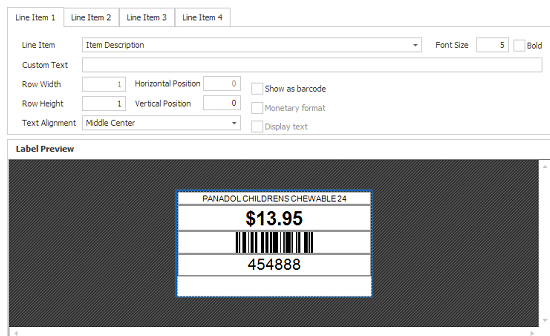
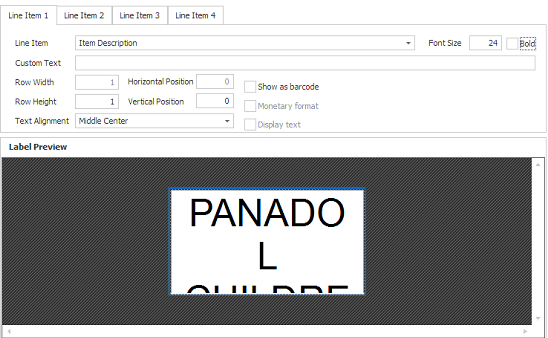
Sets the size of the font used to print the element.
Click a thumbnail below to enlarge the image.
Minimum: 5
Maximum: 24
Bold
Select the Bold checkbox to print the element in bold.
Click a thumbnail below to enlarge the image.
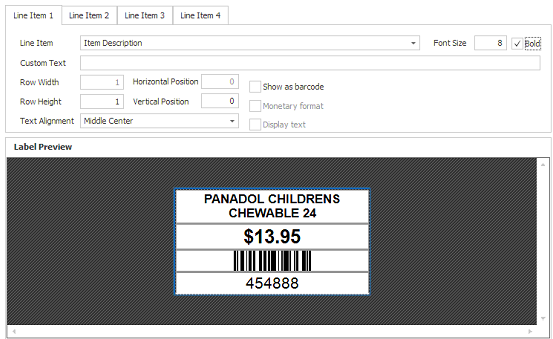
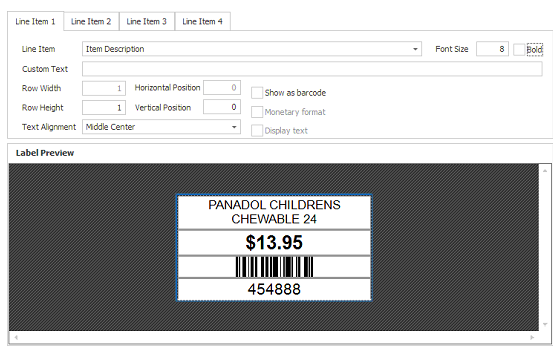
Row height
Sets the number of rows the element occupies on the label.
Click a thumbnail below to enlarge the image.
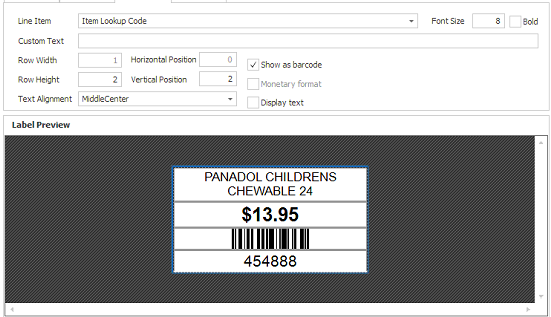
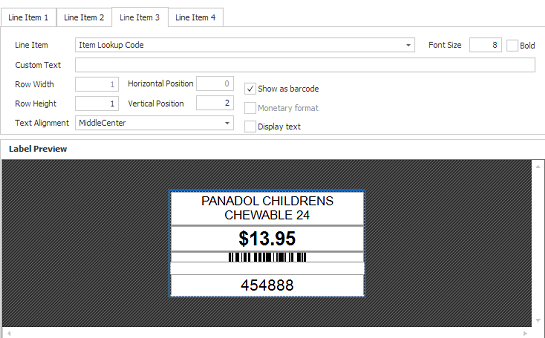
Vertical position
Sets which row the element appears on, starting at 0 for the top row. Adjust the vertical position in conjunction with the row height to control the placement of elements on the label.
Text alignment
Sets the horizontal position of the element within its row.
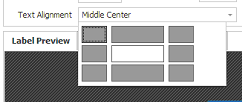
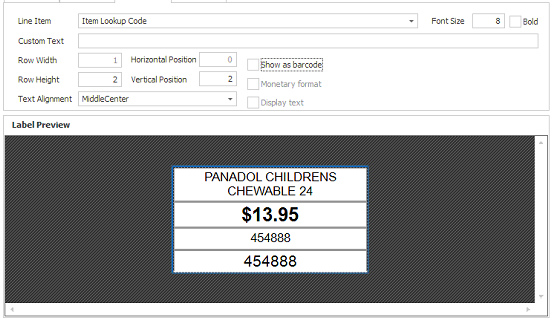
Show as barcode
Select the Show as Barcode checkbox to print a numeric value as a barcode. This option is available for elements that support barcode display, such as Item Lookup Code and Primary Supplier Reorder Number.
Click a thumbnail below to enlarge the image.
Example label templates
The following examples show commonly used label template configurations. Use these as a starting point when creating your own templates.
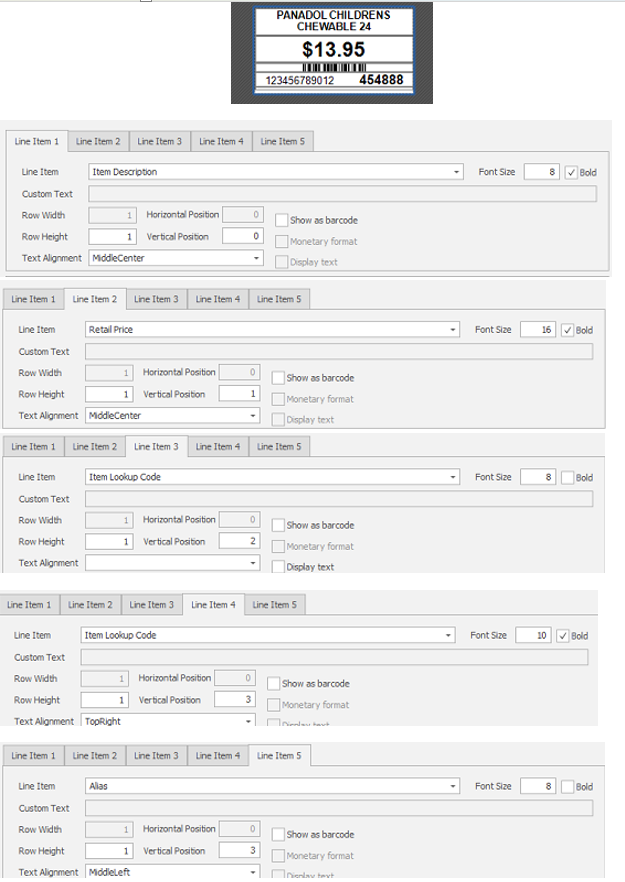
Front of shop — one wide label
This example shows a commonly used one-wide label template for front-of-shop products.
Click the thumbnail below to enlarge the image.
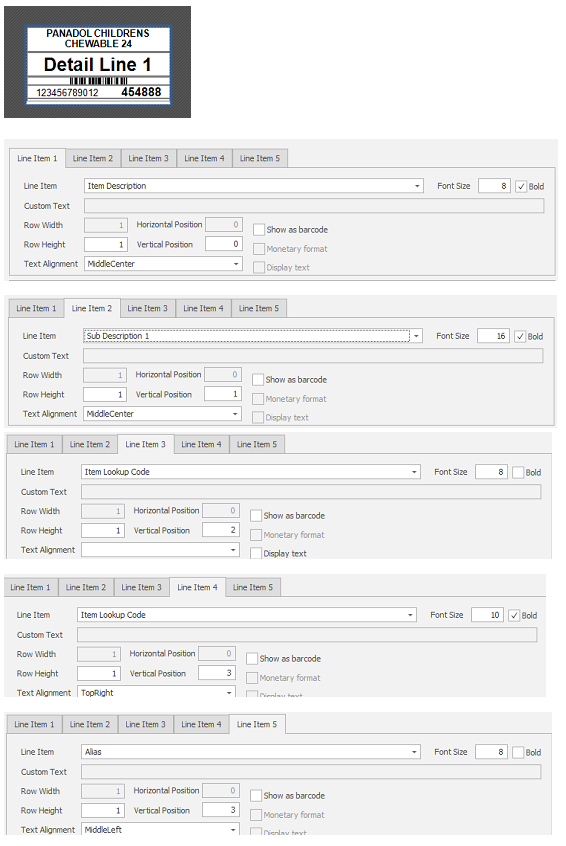
Dispensary — one wide label
This example shows a commonly used one-wide label template for dispensary products.
Click the thumbnail below to enlarge the image.
Goods labels — three wide label
This example shows a commonly used three-wide label template for goods such as gifts.
Click the thumbnail below to enlarge the image.