Quick import for drafts
You can use the Quick Import command to import a spreadsheet with the products you want to order.
Prerequisite
Before you can do this, you need to make sure your spreadsheet contains the following columns in the exact order shown below.
Click the thumbnail below to enlarge the image.

You don't need to fully populate the spreadsheet, as long has you have at a minimum, following for each product:
-
Alias/AppCatHQID
-
Supplier and Reorder number
-
Quantity
Create a Draft using Quick Import
-
Create a draft order. Go to Ordering, then select Drafts, and then New.
-
Select Add items manually, then click OK.
-
The Draft Items Selection window displays. Close this window.
-
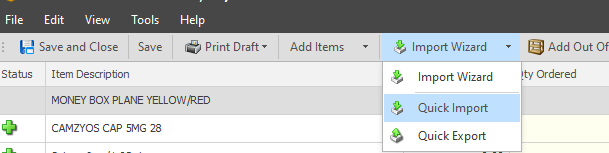
Click the arrow next to Import Wizard, then click Quick Import.
-
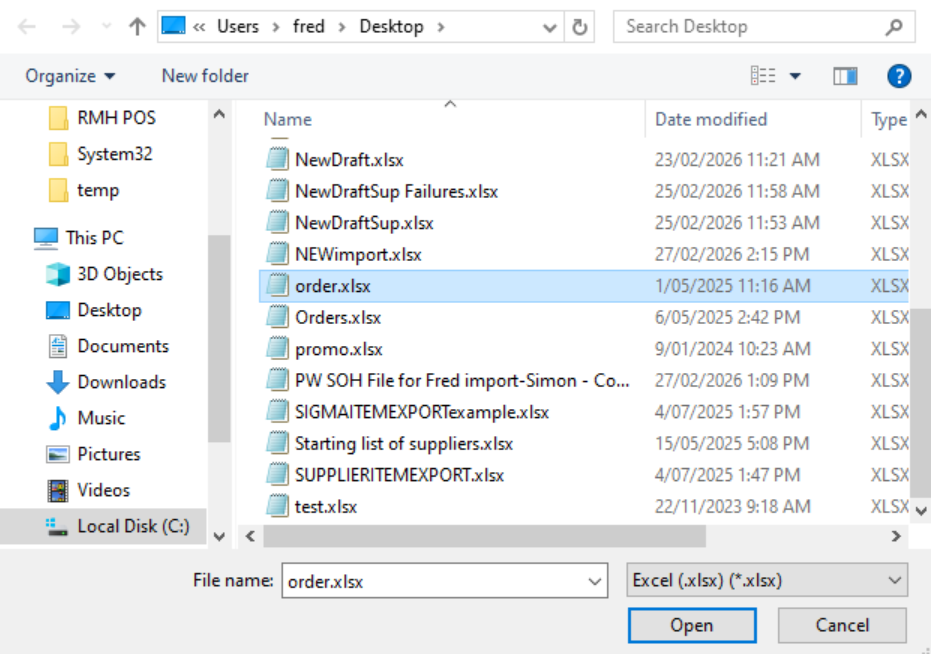
Navigate to the XLS file you created previously, select it, and click Open.
The lines will be imported with the suppliers given in the file and ready to review and send.
If any items do not match to the store data, they will be automatically captured in a file that they can be saved to the Desktop for review.