Edit Medication on the Profile Report
Fred Pak
In this topic
Include Medication in the Medication Profile Report
View the Dispensing History
The patient's dispensing history from Fred Dispense is automatically displayed in the Patient Medication Profile screen. The following information is shown:
- The first date the medication was dispensed
- The last date the medication was dispensed
- How many times the medication has been dispensed
- The Brand name and the Generic name for the drug
- The directions entered for the medication the last time it was dispensed
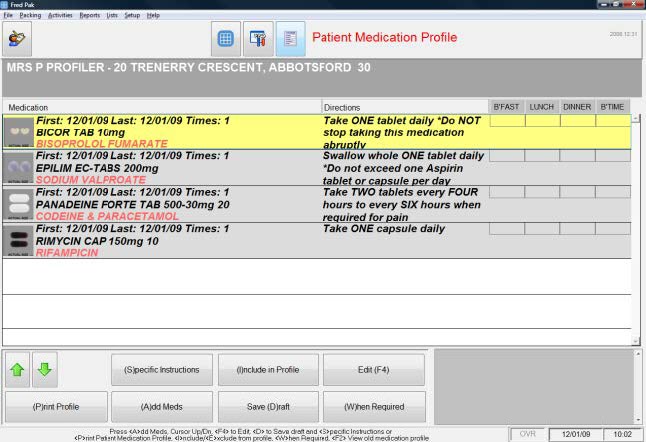
Use the green arrows to change the order included medications print on the profile. When an excluded medication is selected the arrows will be disabled.
Each drug from the patient history must be included so the drug will appear on the Medication Profile Report. Included medications can be identified by the green tick that shows in the profiling screen.
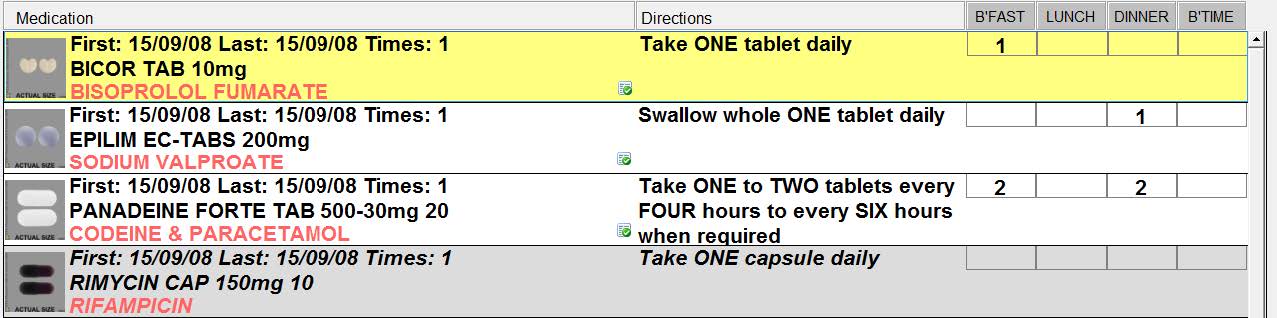
In the medication list, note the following:
- The selected drug is highlighted in yellow
- Included Medications are shown with a white background and a green tick
- Excluded Medications will display with a grey background and will NOT have a green tick. These medications will not print on the Medication Profile Report
Include Medication in the Medication Profile Report
- Highlight the medication
-
Press <I>nclude in the profile or click on the Include in Profile button. The Medication Details screen displays.
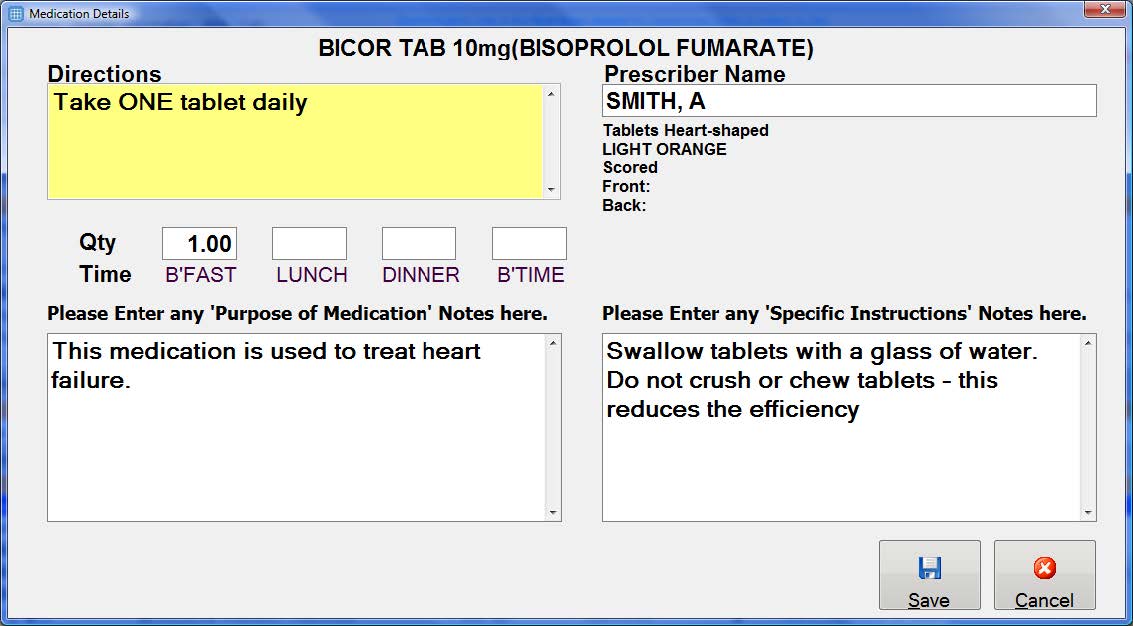
- Enter the dosage times.
- Enter the Purpose of Medication.
- If the instructions do not comply with standard dosage times and drug directions, enter Specific Instructions.
- Enter the Prescriber Name if different to the usual prescriber. For example – a specialist doctor or SELF for OTC Medications.
- Select Save or press End to save and exit the Medication Details screen.
Any medications packed in the Fred Pak Packing after the patients Fred Pak medication profile is initially created, will be automatically be added and flagged as Included in the Patient Medication Profile section of Fred Pak.
Exclude Medication from the Medication Profile Report
- Highlight the medication
-
Click Exclude at the bottom of the screen or press <E>.
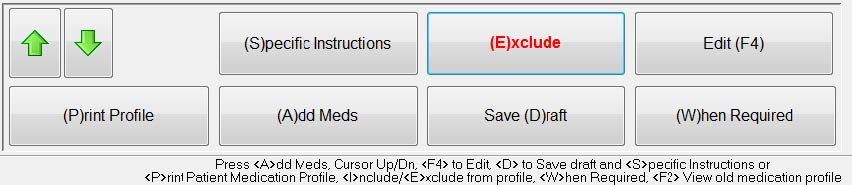
The green tick will then be removed and the medication will no longer be included in the Medication Profile Report.
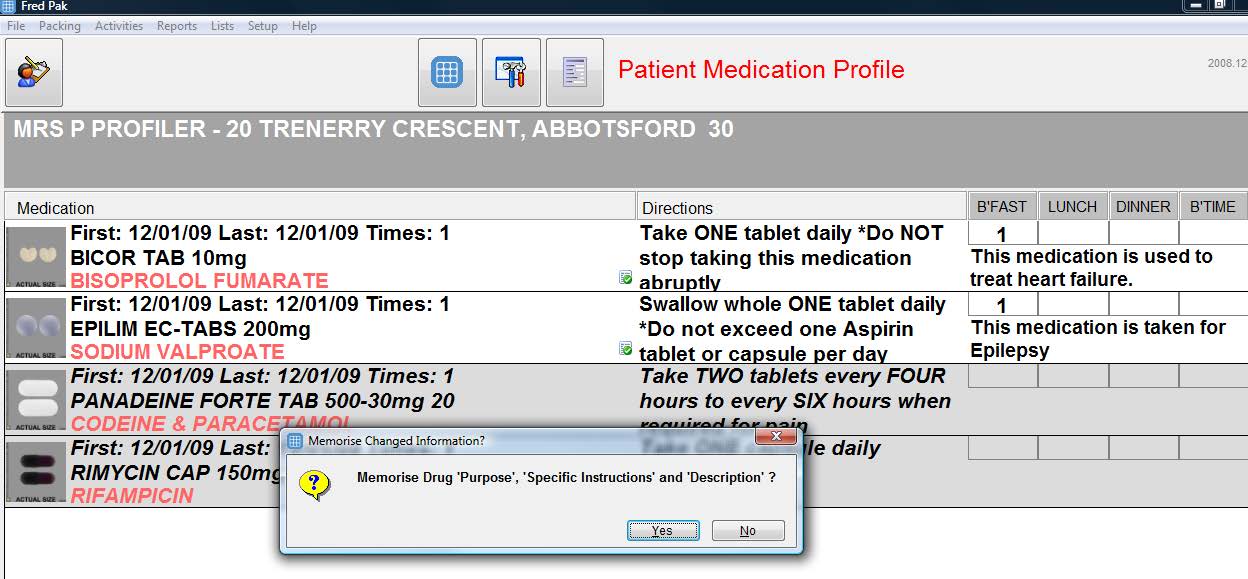
Memorise Changed Information
When saving an included medication, a message may appear as shown below. Each time a Drug Purpose, Specific Instruction or Tablet Description is entered you will be asked if you wish to memorise this information.
Memorising the information will mean that the next time this medication is included on a future profile, the memorised information will be included automatically.
Edit the Medication Details
The medication must be included in the medication profile report to be edited.
- Highlight the included medication
- Press Edit <F4> to edit included medication
If you dispense Diabex 500mg with the directions 3 times a day, then a new script is presented with directions of 4 times a day, once dispensed these new directions will be transferred into the profile. It is important to remember you will need to change the dosage times in the profile to complete the update.
Medications with Specific Instructions or When Required
- To add specific instructions for the administration of a medication, select Specific Instructions or press <S>.
- To flag a medication as "when required", select When Required or press <W>.