An allergy must already be recorded for the patient in Fred Dispense before you can send it to their My Health Record.
- Search for and select the patient.
- Press [F8] to open the Patient Details screen.
- Select Allergies.
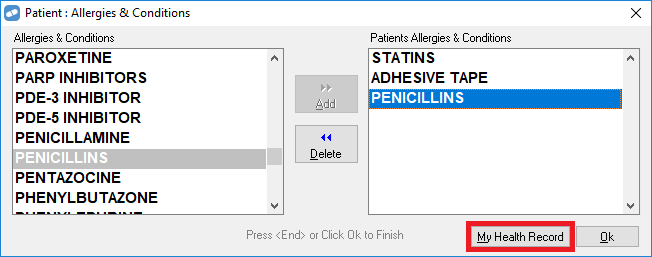
- The Patient: Allergies & Conditions window is displayed.
The right-hand panel shows the allergies and conditions that have been added to the patient’s record in Fred Dispense.
If required, select additional allergies in the left-hand panel, then click Add. - Click My Health Record.
- The Update My Health Record Step 1 of 2 window is displayed.
The patient’s allergies are displayed, with an indication of whether the allergy is listed in Fred Dispense, My Health Record, or both.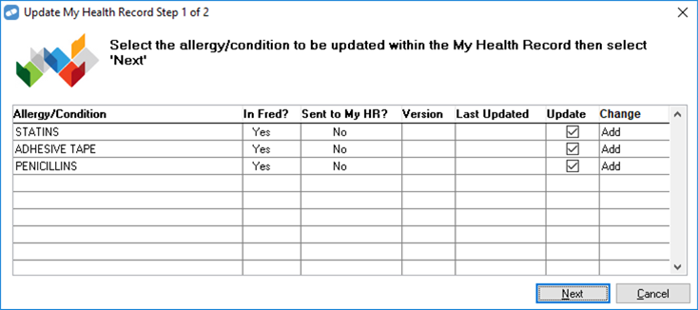
- By default, the Update checkbox is ticked for every allergy. If there are any allergies you do not want to add to the patient’s My Health Record, un tick their checkboxes.
- Click Next.
The Update My Health Record Step 2 of 2 window is displayed, and shows the details of the first allergy you are adding to the patient’s My Health Record.- The heading near the top of the window indicates the type of operation you are performing (ADD, AMEND, or REMOVE).
- The Document ID, Version, and Last Updated fields are read-only.
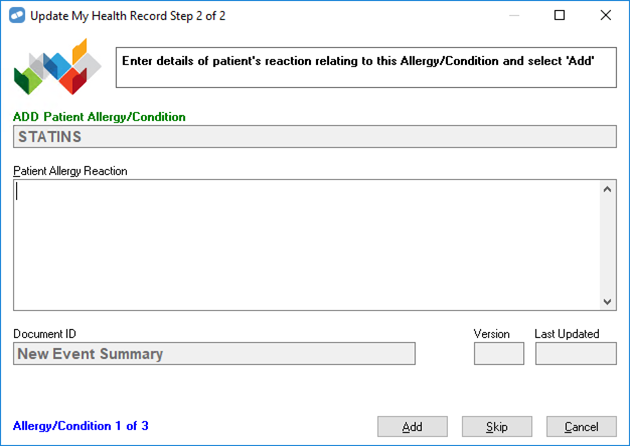
- In the Patient Allergy Reaction field, enter details about the manifestation of the allergy, if required.
- To send the event summary for this allergy to the patient’s My Health Record, click Add.
An Uploading allergy to My Health Record dialog box is displayed.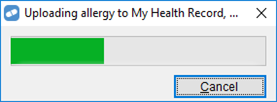
If you click Cancel, depending on how far the process has gone, the event summary might still be created.
Once the event summary is uploaded, a success message is displayed.

- Press any key. If there are more allergies to add, the Update My Health Record Step 2 of 2 window changes to show the next allergy.